
Working on a business rebrand or site redesign and worried about losing your rankings on Google?
I both help support clients who go through rebrands and just went through a site redesign myself, and maintaining (or even improving) your site’s SEO is possible! It may take a little time for Google to crawl your site to see all the changes, but a rebrand doesn’t necessarily mean you’re going to drop to the last page of Google—as long as everything is set up correctly.
So if you want to make sure your rankings don’t plummet during a rebrand or site redesign, these are 8 steps you need to do!

First, a few caveats
There are different ways businesses can rebrand or redesign a site, so there are different potential “levels” of rankings loss. Before we get into how to cover your bases, I just want to make sure you know that even if you do everything correctly, you could see a loss in Google rankings and traffic—temporarily.
If you’re just making some design or website copy tweaks to your current site, you probably won’t see a drop in rankings. And hopefully with the changes you make, they’ll improve!
But if you’re making major changes like moving to a different website platform or totally changing your business name and domain for a rebrand, you’re likely to see some changes in your rankings at the beginning. Google basically has to re-find your site and recrawl everything to see what your site is about. If you change your domain, it may take a little time to build up the trust and authority you had with Google on your previous domain.
So I say all this not to scare you! But just to be realistic and prepare you for a potential temporary drop in rankings if you are making significant changes to your brand and website.
Alright, now let’s get into what to do to help you maintain your SEO or bounce back from a drop in rankings more quickly!
1. Set up a domain redirect
This is self-explanatory, but if you have a new domain, make sure you set up a permanent or a 301 redirect from your old domain to your new one.
If your old website is myoldwebsite.com and your new website is mynewwebsite.com, you need to go into your domain registrar and set up a 301 redirect to point myoldwebsite.com to mynewwebsite.com. That way Google can see that your business still exists, it’s just moved to a new website.
Do not let the old domain expire for at least a year! This is both for SEO purposes but also for any potential website visitors. If you don’t own the old domain, the redirect you set up isn’t going to work anymore. If you have built up brand recognition and people don’t know that your domain has changed, they might go searching for your old domain and not be able to find it. Or any links to your old domain from press features or Pinterest or podcast interviews will just go to a dead link and people clicking on that link won’t be able to find you.
Or even worse, someone buys your old domain and sets up a really spammy site, so anyone who clicks on a link to your old domain gets sent to a weird site. So please keep your old domain for a minimum of a year to maintain the redirect!
2. Check for broken links
Are you deleting pages or changing the link structure? Make sure you set up individual redirects for those links. I see this happen a lot when people switch website platforms and the default link structure on the new website platform is different.
I see this a lot with blogs, but it can happen to any page. For example, if your blog posts are set up like website.com/post/hi-there on your old website platform but your new website platform is website.com/blog/hi-there, all of your old blog post links are going to be broken. So any links you’ve shared on Pinterest, YouTube, any social media platform, or even linked within your blog posts are going to go to 404 pages.
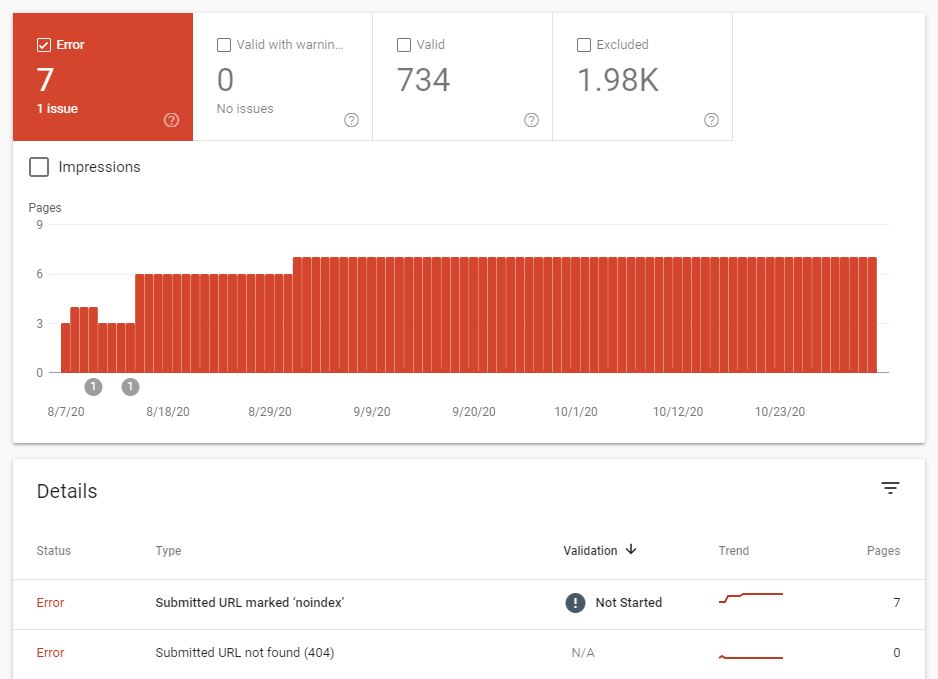
So make sure you check what the link structure of all your pages are before launching the new website, and after it launches, check in Google Search Console for any 404 errors.
When I went through my site redesign, I wanted to remove some service pages from my website. The second I removed them, I set up link redirects to prevent them turning into 404 errors.
3. Check your heading structure
Make sure that you’re following the heading hierarchy and that there is ONLY one H1 heading per page!
Let me repeat that because it really is that important:
Only 👏 one 👏 H1 👏 heading 👏 per 👏 page!
The H1 heading is for the most important text on the page (so the title or the main headline), and it signals to Google what the page is about so make sure you’re incorporating keywords in it! I know some website platforms have design settings for each heading that you can’t customize once it’s on the page (I’m looking at you, Squarespace), but even if you love the design of the H1 heading, please only use one per page!
You can use H2, H3, etc. for the subheadings on the page to help break up sections. So make sure your website designer knows that and is designing for the page structure and not just using the same heading repeatedly because it’s pretty. If they use an H3 instead of an H2 a few times, that is fine and it’s not going to mess up your rankings. But again, just ONE H1 heading per page!
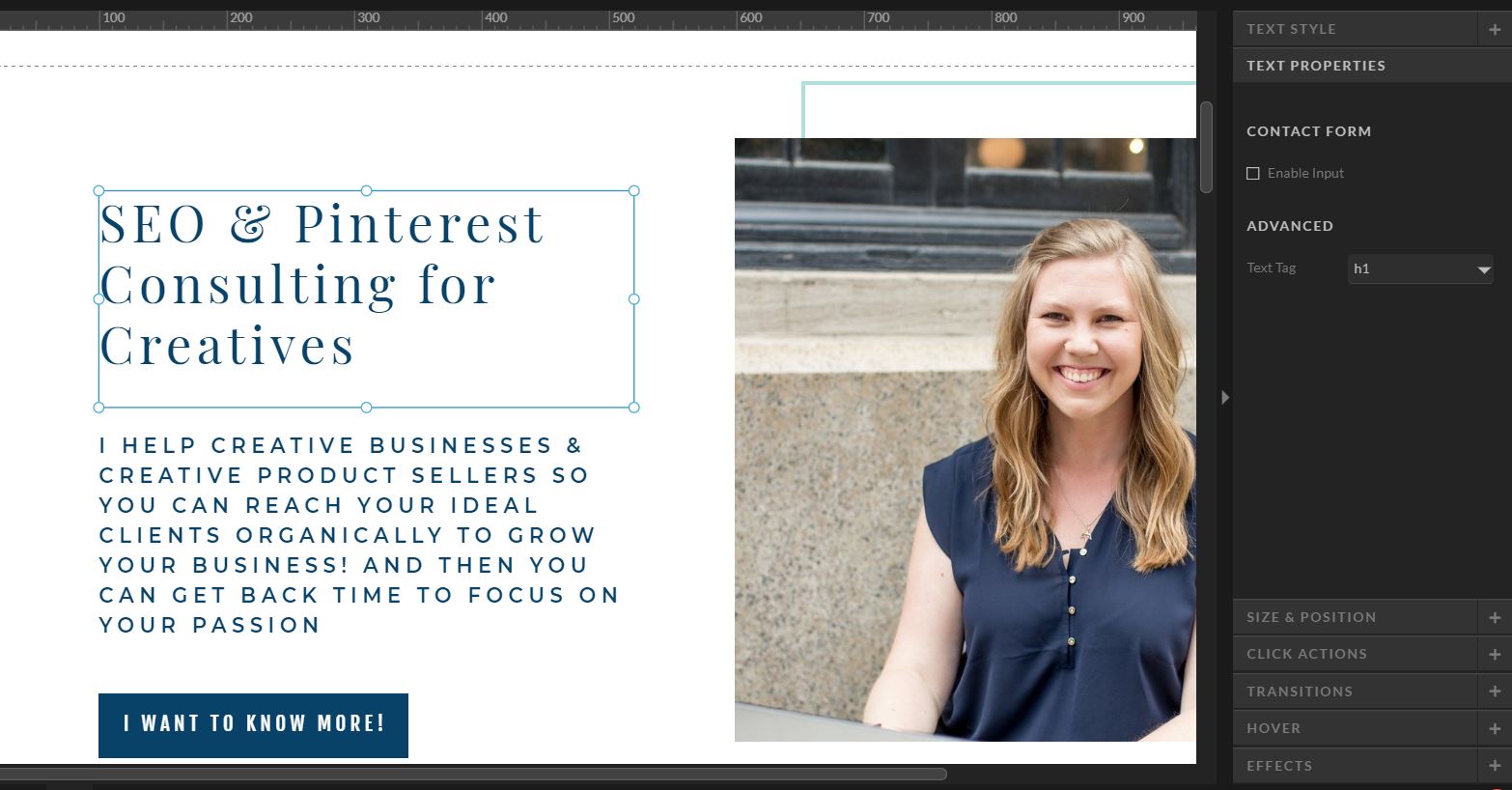
Side note: Showit makes it really easy to design the text however you want and then changing the heading structure without messing up the design! In Wix, this is possible but you need to set the heading structure FIRST, and then change the font, size, etc. If you set the design and then change the heading, it will change the design and then you have to redo everything (ask me how I know this…).
4. Make sure your brand name is updated everywhere
If you’re changing your brand and/or domain name, make sure you update it EVERYWHERE. Here’s a quick list of places to double check:
- Site name
- Site tagline
- Website copy on every page
- Title tags and meta descriptions
- Footer
- Image captions or alt text
- Google Business Profile
- Social media platforms
- Any directories you’re on
This goes for both Google and people who will see your brand to make sure all the updates done across the board!
5. Update Google Analytics and Google Search Console
You only need to do this if you’re changing your domain name, but make sure you go into your settings of Google Analytics (Admin → Data collection and modification → Data streams) to update your domain name as soon as the new domain is live.
In Google Search Console, you may need to set up a new property, depending on how your current property is set up. Once the new domain property is created, then you can submit a Change of address (Settings → Change of address → Update Google).
6. Make sure everything is moved over
If you’re moving from one website platform to another, make sure all the blog posts, title tags and meta descriptions, photos, image alt text, email list signups, pop-ups, etc. is moved over. If it isn’t, you may have to manually move everything over or recreate them.
Many website platforms or website designers will do this for you, but just double check that it’s been done before you launch your new site!
7. Check all the links on your new site
Click on EVERYTHING.
Click on all the hyperlinked text, all the links in your menus, all the social media and email icons (I see this overlooked all the time!), and all the buttons. Make sure they all work and that they’re going to the right place. You don’t want people to click on links that go to the wrong place or just don’t work at all.
If you have any email list sign up spots, test them out to make sure they’re working. If you have a contact form, test it out to make sure you’re getting the emails—especially if you changed the domain in your email address, too.
8. Request re-indexing in Google Search Console
Once you’re done checking every single thing on your new website after a rebrand, it’s time to tell Google! Whether you’ve made design or website copy updates to your current site or have gone through an entire rebrand, you should request re-indexing in Google Search Console to basically tell Google to recrawl your site to see the changes.
This doesn’t mean that they’re immediately going to jump over to your site and recrawl everything immediately, but it can help speed up the process a little!

There is no perfect guarantee that you can maintain your rankings immediately after a rebrand, especially if you’re changing platforms. But following these steps can definitely help! And hopefully your new site is optimized well so that your rankings on Google can be even better.
If you need help with your site after a rebrand, I have an SEO Setup Service! It will get your new website optimized and make sure everything is functioning smoothly with no technical errors! And if you’re a website designer, I do offer white label SEO services if you want to incorporate SEO directly into your process 🙂




Wow, this is the SEO equivalent of a solid 10-step guide to preventing your website from doing a dramatic karate chop to its rankings! Setting up redirects is like telling Google, Hey, we moved the party, but its still us! and absolutely crucial. And checking for broken links? Thats like making sure none of your dance moves on the new floor are awkward stumbles – you gotta practice that! But honestly, the part about only having *one* H1 heading per page? Thats like saying you can only have one main dish at a dinner party; wheres the fun in that? Overall though, this is the ultimate survival manual for website rebranding! 🚀💻
Thanks! The fun in having only one H1 heading per page is ranking higher on Google 🙂